Swap the order of two turns
Grab a book and lay it flat on the table, cover up. Turn it 90° about the vertical axis, then 90° about the left–right axis, and note how it ends up. Now put the book back and do the two turns in the opposite order. You get a different result.
, but rotations care about order. This lab is built around that innocent-looking fact, using a 3 × 3 rotating-cube puzzle whose 26 pieces get turned, layer by layer, hundreds of times. Combine the rotations wrongly and the puzzle falls apart within a few moves. Let's find out why.
Accepting a multiplication whose answer depends on the order, and building it into the rules of a number system, was a real event in 19th-century mathematics. A mathematician who had been stuck for years finally gave up the commutative law and added a fourth number, and quaternions, a tool for computing rotations in space, were born.
Why the right-hand cube falls apart
The orientation of one piece can be described by a single rotation : how far it has turned from where it started.
In 1775 Leonhard Euler proved that any motion of a rigid body with one point held fixed is the same as a single rotation about some axis through that point. The proof was published the next year. Describing an orientation with three angles also goes back to him, which is why we still call them Euler angles.
When you turn a layer, its pieces rotate by 90° about an axis fixed in space, called a world axis. If this turn is , the new orientation is . The later rotation is multiplied on the left. That is the correct way to combine them.
Now suppose instead you store the orientation as three angles, the Euler angles , and every time you turn about you add to , about you add to , and so on. If the orientation is built as
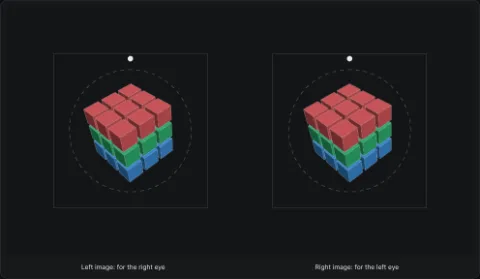
adding to is the same as multiplying by on the left, which is fine. But adding to multiplies by on the right, and a rotation on the right turns the piece about its own axis, the one carried along by all the earlier turns. Once a piece has turned about some other axis, its own axis no longer points along the world axis, so the piece swings off in the wrong direction. That is why the right-hand cube in the comparison view falls apart.
When someone gives you directions, "turn right at the next corner," they mean your right as you walk, not east or west on the map. World axes are the compass directions on the map; a piece's own axes are the walker's left and right. Multiplying on the left or on the right is the difference between those two kinds of "right." The analogy only tells you whose axes you are using, though. The fact that the order of the turns changes the result is special to space; walking directions on a flat map don't have that problem.
Look closely and something even stranger is going on. A piece's position is its solved position turned by the piece's orientation, so when the orientation goes wrong, the position goes wrong too, and two pieces can end up in the same place. Starting from the solved cube, just two moves, R then U, leave the right cube with two pairs of pieces sharing a slot. A real puzzle can never do that, which is the clearest proof that the calculation, not the puzzle, is at fault.
A multiplication where order matters
Can rotations in space be written as multiplication of numbers? The clue is complex numbers. Multiply a point in the plane by and it turns about the origin by . In the plane, then, a rotation is a single multiplication.
The man who took up this question was the Irish mathematician William Rowan Hamilton. If complex numbers handle rotations in the plane, surely, he thought, triples of numbers could do the same in space. From the 1830s he was gripped for years by the problem of multiplying such triples, and it would not work. In a letter to his son written in 1865, the last year of his life, he recalled that in the early days of October 1843 his two young sons would ask him every morning at breakfast, "Well, Papa, can you multiply triplets?" and he had to admit, with a sad shake of the head, that he could only add and subtract them.
On October 16, 1843, Hamilton was walking with his wife along a canal in Dublin on his way to a council meeting of the Royal Irish Academy when the answer came: use four numbers instead of three, and allow the order of multiplication to matter, . These are the quaternions: sets of four numbers with three imaginary units , multiplied by the rules
Look at the last two: swapping the order flips the sign. The fact that rotations care about order is built into the rules. He later wrote that the discovery felt like an electric circuit closing and a spark flashing out. He carved into the stone of a bridge he was passing. The carving has long since faded, but a plaque was put up on the bridge in 1958, and a walk along the same route is held every year in his memory.
In that sense quaternions are the three-dimensional cousin of complex numbers, with one big difference: plane rotations can be done in either order, while rotations in space cannot, as the book showed. That difference is exactly why Hamilton's triples kept failing; it had to be built into the rules of the numbers.
Quaternions were the first number system with an order-dependent multiplication to be studied seriously. Later, in 1877, Ferdinand Georg Frobenius proved that as long as you keep the associative law, , there are only three finite-dimensional "number systems" built on the real numbers in which you can always divide: the real numbers, the complex numbers and the quaternions. Give up associativity as well, and an eight-dimensional system, the octonions, joins the list. Hamilton devoted the rest of his life to quaternions. Similar calculations had appeared before, though. In 1840 Olinde Rodrigues, a French banker and social reformer, had published formulas that compose rotations using four numbers, but he did not treat them as a new kind of number.
Half the angle, applied from both sides
Treat a vector as the quaternion , with zero real part. The rules then give the product of two vectors as , which combines the dot product and the cross product. In particular, perpendicular vectors satisfy , and a unit vector satisfies . The cross product goes beyond most high-school math courses, but you meet it in physics, in the magnetic force: it is the vector perpendicular to both of the two you started with.
Now, to rotate by angle about a unit axis , take
and compute , where . Does this really rotate? If is parallel to the axis, it can swap places with , so : points on the axis stay put. If is perpendicular to the axis, gives , and so
where is worked out with exactly like the double-angle formulas. The last expression is precisely turned by within the plane perpendicular to the axis. A general vector splits into a part along the axis and a part perpendicular to it. This also explains the half angle: the sandwiched vector feels from both sides, as , which doubles the angle. Because of it, and describe exactly the same rotation. To combine rotations, multiply the later one on the left, , just as with matrices, , but with four numbers instead of nine.
The same mathematics turns up in unexpected places. Rotate the spin state of an electron or a neutron by 360° and its sign flips; only 720° brings it back, just as a quaternion becomes after a full turn. Try the "plate trick": hold a plate flat on your palm and turn it one full turn while keeping it level. Your arm ends up twisted and uncomfortable. Keep going for a second full turn, and the twist undoes itself. Your arm is acting out the fact that it takes 720° to get back to the start. In 1975 experiments with interfering neutrons confirmed this 720° period.
Gimbal lock: the weak spot of three angles
There is a different ailment with a flavor similar to the cube falling apart: gimbal lock. In a gimbal, a device that sets an orientation with three nested rings, tilting the middle ring by 90° lines up the axes of the outer and inner rings, and three independent ways of turning collapse into two. This is not a mistake about the order of multiplication. It is a built-in weakness of describing orientation with three angles. Stand on the North Pole and every direction is south: longitude stops meaning anything there, even though the pole itself is perfectly ordinary ground. Gimbal lock is the same kind of thing, a singularity of the coordinates, not of the rotation.
Now the Euler angles. Write the gimbal's orientation with yaw , pitch and roll as . What happens when the pitch is exactly 90°? tips the axis over onto the direction. So "turn by about , then tip by 90°" is the same as "tip first, then turn by about where the axis went," the axis. A turn of about is a turn of about , so . Multiply by on the left:
Yaw and roll only matter through their difference : a degree of freedom has vanished.
Seen through linear algebra, a rotation matrix has nine entries, but its columns must be orthogonal and of length one, which leaves only three free choices. Euler angles pick those three directly as angles, and pay for it with trouble spots.
In fact, mathematicians have shown that no way of describing every orientation with just three numbers can avoid such trouble spots everywhere. Quaternions dodge the problem by using four numbers and one condition, that the length is 1.
Here are the three descriptions side by side.
| Description | Numbers used | Conditions | Trouble spots | Combining | Smoothly joining two orientations |
|---|---|---|---|---|---|
| Euler angles | 3 | none | yes (gimbal lock) | not by simply adding angles | angle by angle tends to give odd paths |
| Rotation matrix | 9 | columns orthogonal, length 1 (6 conditions) | none | matrix product | mixing two directly no longer gives a rotation |
| Quaternion | 4 | length 1 | none ( and are the same rotation) | quaternion product | spherical linear interpolation (slerp) |
Gimbal lock was a real engineering problem. The inertial measurement unit on Apollo 11 used three gimbals; the engineers preferred the simplicity and reliability of three rings to adding a fourth. Instead, the lunar module's computer flashed a "gimbal lock" warning at 70° and froze the unit at 85°, after which the astronauts would have had to turn the spacecraft away and realign the platform by sighting stars. After the landing, Michael Collins, orbiting alone in the command module, joked over the radio about being sent a fourth gimbal for Christmas; the exchange is in the mission transcript.
A comeback in spacecraft and games
After Hamilton's death, Peter Guthrie Tait championed quaternions, and even the equations of electromagnetism were written with them. From the mid-1880s, however, Josiah Willard Gibbs and Oliver Heaviside took the "vector part" of quaternions and built the simpler dot and cross products we use today, and quaternions gradually faded from physics. They returned in the late 20th century as a practical tool for handling orientation in computers.
Today many satellites, spacecraft and aircraft avoid rings altogether: their sensors are fixed directly to the vehicle, and the orientation is tracked by calculation, very often with quaternions. The orientation sensor in your phone works the same way, with tiny gyroscopes and no rings at all.
In 3D games and animation, the orientation of characters and cameras is normally stored as a quaternion. In 1985 Ken Shoemake introduced spherical linear interpolation, or slerp, to computer graphics, a way to turn smoothly at a constant rate from one orientation to another, and it became the standard for rotation animation. The "interpolate with quaternions" turn in this lab's gimbal view is slerp. Robot arms, smartphone sensors and VR headsets often pass orientations around as quaternions too.
The puzzle's moves form a group
The puzzle itself is simpler. Piece positions are the integers , and orientations are matrices whose entries are only and . Each move permutes eight or nine pieces, and four identical moves bring you back. To undo a sequence , apply the inverse moves in reverse order, . It is the rule for socks and shoes: socks go on first, but shoes come off first. In symbols, .
The puzzle's moves form a group, with composition, inverses and a "do nothing" identity, and a non-commutative one at that, which you can hold in your hands. The socks-and-shoes rule holds in every group.
The 3 × 3 rotating puzzle, invented in Hungary in the 1970s, became a playground for group theory. It has 43,252,003,274,489,856,000 reachable states, and in 2010 a large computation showed that every one can be solved in at most 20 moves, counting a half turn as one move.
Finally, a word about computers. Multiplying many small rotations accumulates rounding error, which is why this lab snaps each piece back to an exact integer matrix at the end of every move.
Turn it yourself
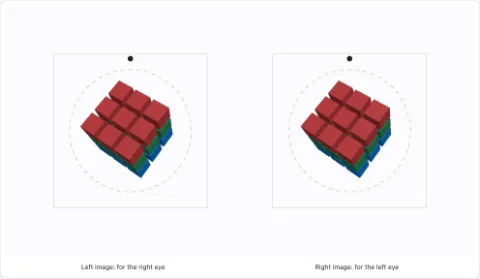
- On opening, "What to view" is set to "Compare two cubes side by side", and both cubes play R U R′ U′. Which pieces go wrong in the right-hand cube?
- Press only the R, L and M buttons as often as you like. The right cube never breaks. Why? Look at where the angle sits in . Then mix in U or F.
- Tap a piece and read the box under "Numbers": the quaternion and the rotation matrix. How does change with each move?
- Set "How the right cube combines rotations" to "Multiply the matrix on the right (own axes)" and repeat. Does the cube break in the same way?
- Set "How the right cube combines rotations" back to "Add to Euler angles (breaks)", type R U in "Type a sequence of moves" and press "Solve first, then run". How many "Overlapping pieces" does the panel show? Now do the same with U R. What changes when you swap the order?
- Press "🔀 Scramble", then "✔ Solve (retrace the moves)". Can you explain with socks and shoes why it works? The scramble's 20 moves are now in the "Type a sequence of moves" box, so "Solve first, then run" recreates exactly the same scramble.
- Switch "What to view" to "Gimbal lock and rotation order" and press "Set pitch to 90° (gimbal lock)". How do the yaw and roll sliders compare now?
- Press "Turn the plane 15° about the world axis (quaternion slerp)". The plane barely moves. What do the rings do?
- Turn on "Overlay the same three angles applied in reverse order (Z → X → Y)". When do the two planes coincide?
What the order of turns taught us
Rotations in space depend on order, so turns about world axes must be built up by multiplying the later turn on the left, . Adding to Euler angles instead turns pieces about their own axes as soon as the axes are mixed, and the cube falls apart. Gimbal lock is a separate story: a weakness of using three angles at all.
Quaternions describe rotations with four numbers, without trouble spots, and can be interpolated smoothly. That is why a formula scratched into a Dublin bridge, after losing its place in physics, came back to life inside spacecraft, games and phones.
One last experiment: repeat the book test with four 90° turns instead of two. What patterns can you find?
Sources and further reading
The facts in this article were checked mainly against the following.
- MacTutor, "William Rowan Hamilton" (University of St Andrews): the years spent on triplets, his children's question, October 16, 1843, the carving and the plaque, the first noncommutative algebra to be studied
- W. R. Hamilton, letters describing the discovery of quaternions, including his letter to his son Archibald of August 5, 1865 (Trinity College Dublin): the breakfast question in October 1843 and the "galvanic circuit of thought"
- L. Euler, "Formulae generales pro translatione quacunque corporum rigidorum," 1776 (Euler Archive, E478): the original paper on the rotation theorem
- K. Shoemake, "Animating rotation with quaternion curves," SIGGRAPH, 1985: slerp
- H. Rauch et al., "Verification of coherent spinor rotation of fermions," Physics Letters A, 1975
- S. A. Werner et al., "Observation of the Phase Shift of a Neutron Due to Precession in a Magnetic Field," Physical Review Letters, 1975
- "God's Number is 20" (cube20.org): the 2010 computation showing every position can be solved in 20 moves or fewer
Further reading (encyclopedias):
- Wikipedia, "Quaternion": Rodrigues, Tait, the shift to vector analysis, Frobenius's theorem, the revival in computing
- Wikipedia, "Gimbal lock": the Apollo 11 inertial measurement unit, its warnings, and Collins's joke
- Wikipedia, "Euler's rotation theorem"
- Wikipedia, "Olinde Rodrigues"
- Wikipedia, "Plate trick"